Setup
As ilumr is a sensitive NMR device, it is important that the system is stable and correctly set up before use. This section will walk you through how to load a sample, power ilumr, connect to the system, and load the software interface. The system must also be calibrated before use. Steps for the calibration proccess can be found in the System and Calibration Apps section.
Powering ilumr
Remove ilumr from its packaging and place on a stable desktop.
Attention
Please ensure all the protection wraps are removed before following the instructions to power ilumr on.
ilumr is supplied with a 24V DC power supply that can be plugged into a standard power outlet.
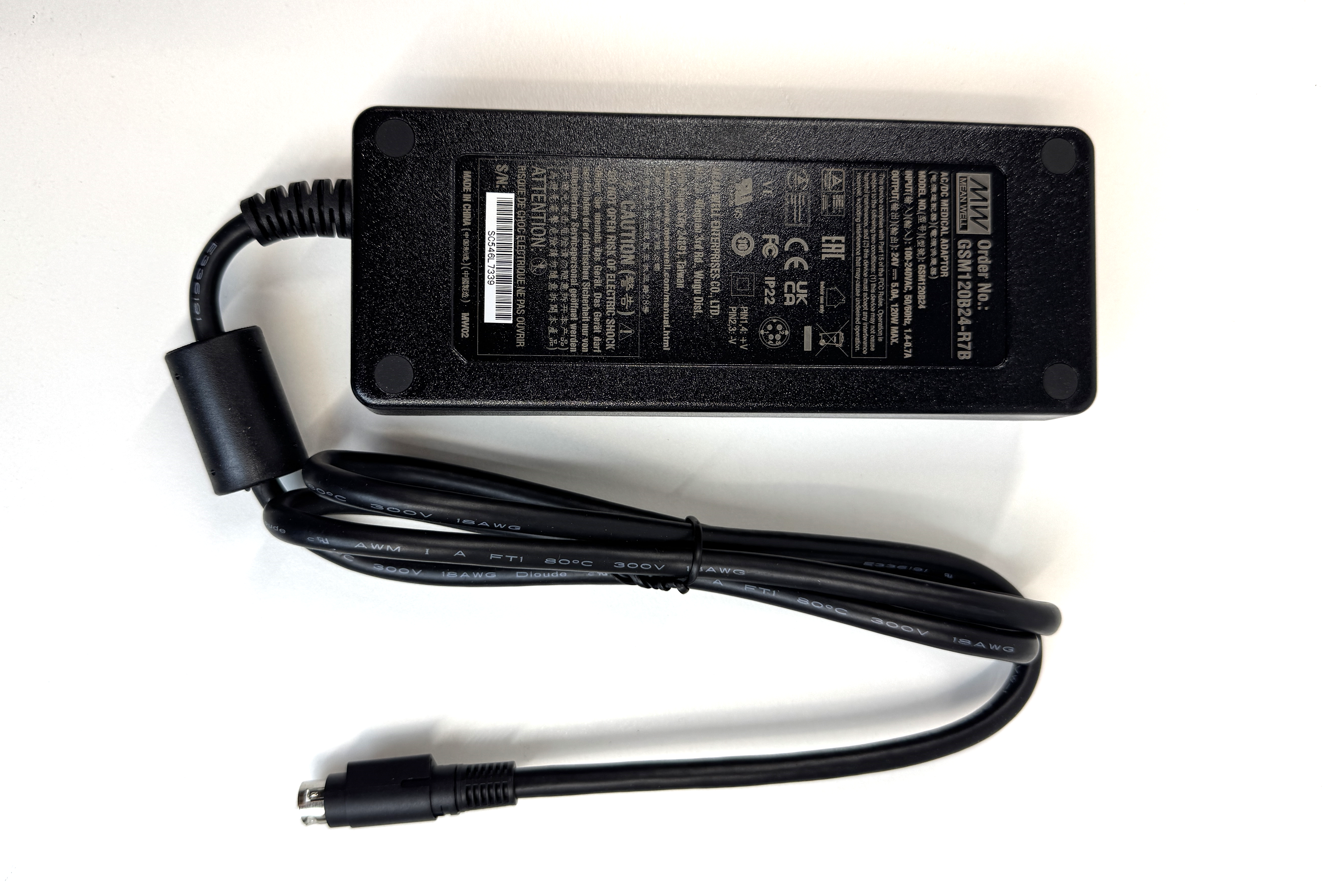
ilumr 24V DC Power Supply
To power the system on, connect the 24V DC power supply that was shipped with ilumr and press the front power button once. When the system is powered on, the ring in the centre of the power button will glow blue. ilumr will create its own WiFi access point which can be connected to for system control, it can also be plugged into your PC or local network using the Ethernet port.
Attention
To avoid data loss, please do NOT turn ilumr off using the power button. Please use the admin dashboard to turn off the system.
Connecting to ilumr
No software installation is required to use ilumr. The system is controlled through a web browser hosted on an internal computer running a linux operating system. Real-time communication through a web socket allows you to run experiments, process data, and transferring data to your PC.
Connecting to ilumr is simple and can be done in any of the following 3 ways:
Using the ilumr WiFi Network: This is the most straightforward and convenient way of connecting to ilumr. Once ilumr has powered up, it will generate its own WiFi access point based on the system serial number. For example, the serial number RLI01022018 would generate the following:
WiFi name: ilumr-RLI01022018
WiFi password: RLI01022018
Log onto the generated WiFi access point using your system’s serial number as the password.
Note
Note that using this method your PC will lose its internet connection if it gets internet via WiFi. This is not a problem if your PC gets an internet connection through ethernet.
Ethernet Connection to your Local Router: This type of internet connection is required for ilumr software updates and can provide a simple way for multiple people to connect to and use ilumr. Using a standard ethernet cable, connect ilumr to your local router. In this case, the IP address used to access the instrument will be assigned by the router. To find it, log into the router’s admin page and check the connected devices list for “ilumr”.
Note
Some Universities and Reasearch Institutes have network restrictions around which devices can be directly connected to a local router. If you are having issues establishing an Ethernet connection between ilumr and your router, you may need to contact your institute’s IT department.
Ethernet Connection to your PC: If a connection to your local router is not possible, then using an ethernet cable to connect ilumr to your PC will allow you to maintain an internet connection over WiFi while connected to ilumr. This setup requires some network configuration on the host PC. The easiest method is to enable internet sharing to the ethernet interface. See the section below for details.
Note
Please also note that data transfer speeds over WiFi will be slower than when plugged in using ethernet
Setting Up Direct Ethernet Connection
If you are connecting to your ilumr via WiFi, you may skip this section.
- For Windows 11:
Right click start menu and click Network Connections on the pop up menu.
Click Advanced ntework settings.
Click More network adapter options under Related settings.
Right click the adapter that has Wi-Fi and select Properties.
Click the Sharing tab and check “Allow other network users to connect through this computer’s Internet connection”.
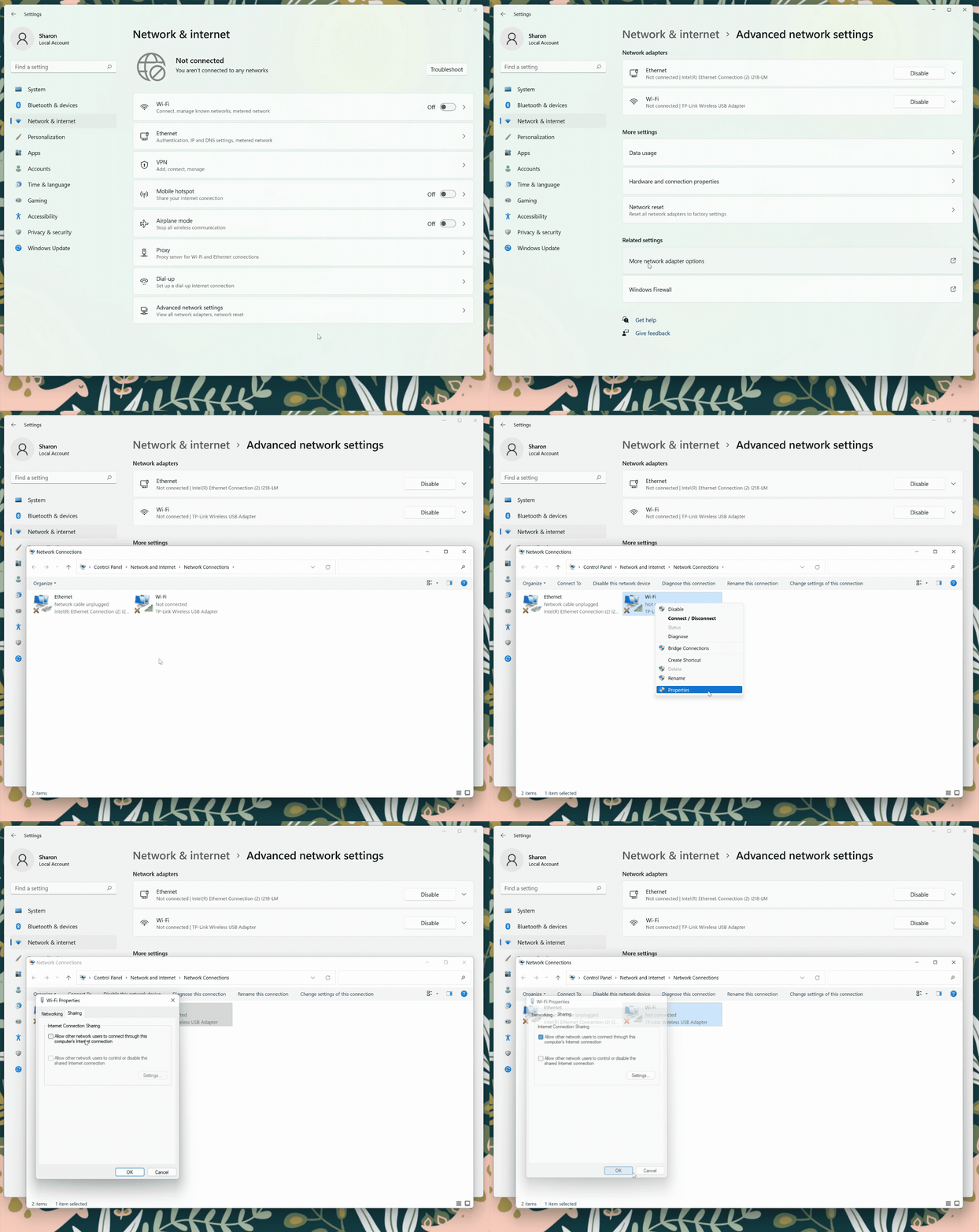
Setting up Ethernet Connection on Windows 11
Loading the User Interface
The graphical interface for ilumr is built on JupyterLab, a web-based environment through which the system can be controlled. Powerful tools include a combination of high level GUI dashboards for common tasks and system setup as well a Python based notebook environment where workflows of data acquisition and processing can be created.
For more information on JupyterLab, visit www.jupyter.org
Once a WiFi connection with ilumr has been established, you can load the JupyterLab interface. Open a browser window on your PC and, in the browser’s address bar, enter http://ilumr/ or the direct IP address:
http://192.168.0.4 (for direct WiFi connection)
http://<router assigned IP> (for router ethernet connection)
http://192.168.137.2 (for PC ethernet connection)
Note
For router ethernet connection, check router admin console for the list of connected devices and find the MAC address given in the test report.
An initialisation screen will be displayed as JupyterLab starts up and the environment will be automatically loaded when ready.